How to install an eSIM on iPhone and Android: step by step
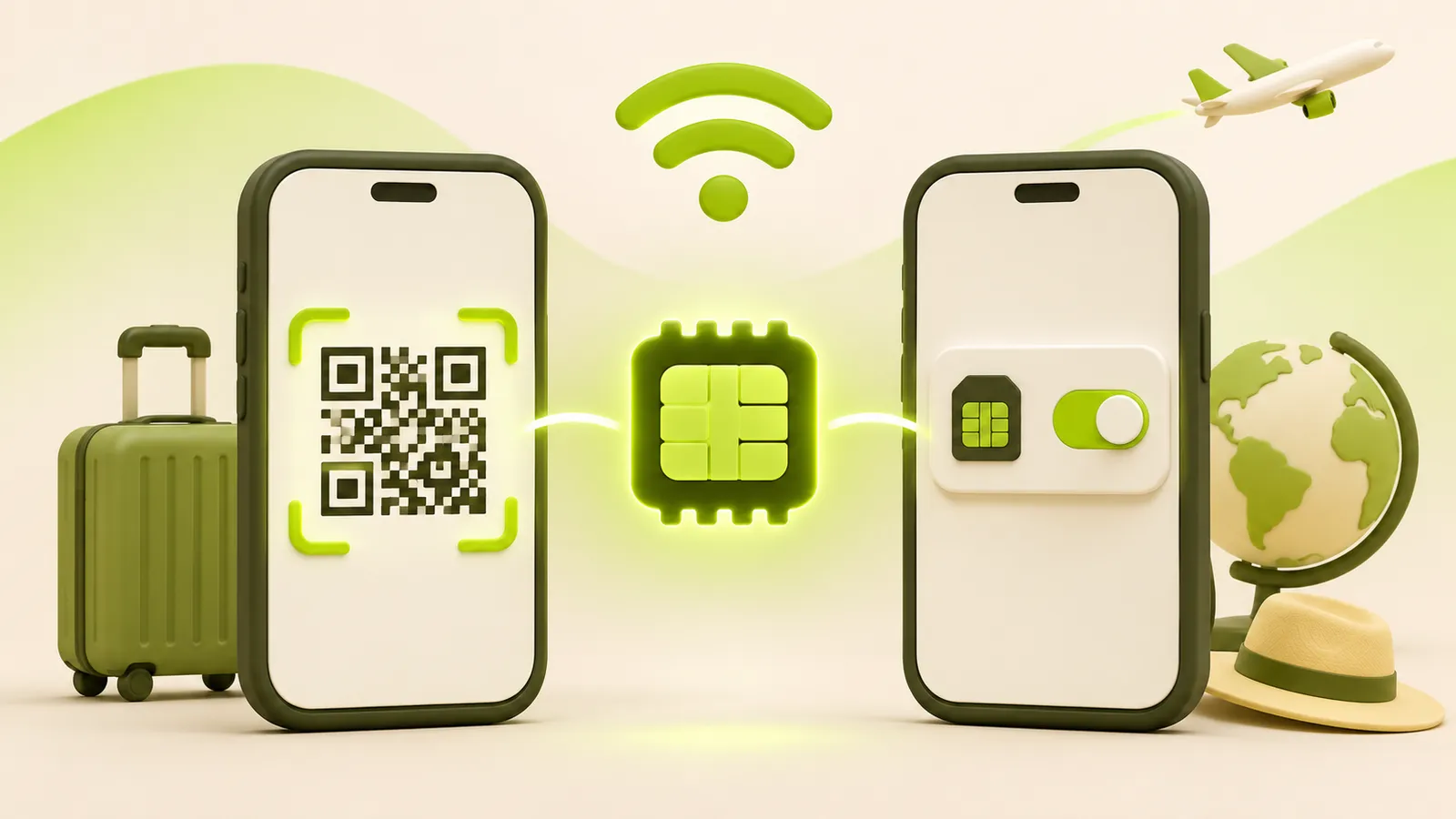
To install an eSIM, connect to a stable Wi-Fi network, open the QR code in your Butacell account and scan it from your phone's settings: on iPhone under Cellular, on Android in the SIM or mobile network settings. Do it at home before you travel. When you land, set the eSIM as your line for mobile data and turn on data roaming for it.
iPhone and Android at a glance
| Step | iPhone | Android |
|---|---|---|
| Get the QR code | Butacell account: Trips & packs, then Show QR for this device | Butacell account: Trips & packs, then Show QR for this device |
| Where to add the eSIM | Settings, Cellular (Mobile Data in some regions), Add eSIM | Add eSIM in the SIM or mobile network settings (menu names vary by phone) |
| How to add it | Use QR Code, then scan | Scan the QR code and follow the prompts |
| If scanning is not possible | Enter the SM-DP+ address and activation code | Enter the SM-DP+ address and activation code |
| When you land | Mobile data on the eSIM line, data roaming on | Mobile data on the eSIM line, data roaming on |
Before you start
Check three things before you open the QR code:
- Your phone supports eSIM and is unlocked. A phone locked to your home operator cannot use an eSIM from another provider. If you are not sure, see our device compatibility guide.
- You are on a stable Wi-Fi connection. The phone downloads the eSIM during installation, so a weak or patchy connection can interrupt it.
- You install before you travel. The plan starts when your phone first connects to a network in a country the plan covers, so installing at home a few days early does not use up any days.
Your home SIM can stay in the phone. The eSIM is added next to it, so you do not lose your usual number.
Step 1: Open the QR code in your Butacell account
After you buy a plan, open your Butacell account, go to Trips & packs and choose Show QR for the correct device. If your account has more than one device, make sure you pick the phone you are about to install on.
The easiest way to scan is to show the QR code on a second screen, such as a laptop or another phone, and point your phone's camera at it. If you only have the phone you are installing on, use the manual details described further down.
Step 2 on iPhone: add the eSIM in Settings
- Open Settings.
- Tap Cellular. In some regions this menu is called Mobile Data.
- Tap Add eSIM.
- Choose Use QR Code and scan the code from your Butacell account.
- Follow the prompts on screen to finish.
Keep Wi-Fi on until the installation is complete.
Step 2 on Android: find Add eSIM in the network settings
Android phones use different menu names depending on the maker and the software version, so the exact path varies from phone to phone. In general:
- Open your phone's settings.
- Go to the SIM or mobile network settings.
- Look for Add eSIM or an option with a similar name.
- Scan the QR code from your Butacell account and follow the prompts.
If you cannot find the option, use the search bar in your settings and type "eSIM". If nothing related to eSIM appears at all, your phone may not support it.
No camera? Enter the SM-DP+ address and activation code
If the camera cannot read the QR code, or the code is on the same phone you are installing on, you can add the eSIM by hand. Your Butacell account shows an SM-DP+ address and an activation code next to the QR code. In the same Add eSIM flow, choose to enter the details manually and type or paste both values exactly as shown, without extra spaces.
Keep the installed eSIM for later trips
Do not delete the eSIM after your trip if you plan to travel again with the same phone. Later packs for that device reuse the installed eSIM, so you install once and simply add data next time. Our guide on adding data shows how.
When you arrive: switch to the eSIM
- Set the eSIM as the line for mobile data.
- Turn on data roaming for the eSIM line. The travel eSIM connects to networks abroad, so it needs data roaming switched on.
- Keep your home SIM for calls if you want. You can leave it on to receive calls and texts on your usual number. Keep data roaming off on the home line so it does not use your home operator's roaming.
Give the phone a minute or two to find a network. If you still have no connection, check the table below.
Troubleshooting: problem and what to check
| Problem | What to check |
|---|---|
| No signal | Make sure the eSIM line is turned on, you are in a country your plan covers and data roaming is on for the eSIM line. Restarting the phone can help it find a network. More in connection help. |
| Signal but no internet | Check that mobile data is set to the eSIM line, not your home SIM, and that data roaming is on for the eSIM. Then check that your plan still has data left. More in connection help. |
| QR code not accepted | Make sure you are on stable Wi-Fi and are scanning the QR code for the correct device. If it still fails, enter the SM-DP+ address and activation code instead. See the installation guide. |
| Phone not compatible, or no Add eSIM option | Your phone must support eSIM and be unlocked. Check your model in the device compatibility guide. |
Tips for a smooth installation
- Install at home on Wi-Fi a day or two before you fly, not at the airport.
- Have a second screen ready to show the QR code, or keep the manual details at hand.
- After installing, check that the eSIM shows up as a line in your mobile settings.
- Do not delete the eSIM once it is installed: you need it for later packs.
- Download offline maps before you leave, in case you need directions before you connect.
- If you get stuck, contact us.
Before you buy, check that your phone supports eSIM with our eSIM compatibility checker.
Frequently asked questions
Can I install the eSIM before my trip?
Yes, and it is the best way to do it. The plan starts when your phone first connects to a network in a country the plan covers, so installing early at home does not use up any days.
Do I need to remove my physical SIM?
No. Your home SIM can stay in the phone. Use the eSIM for mobile data and keep the home SIM for calls if you want.
Do I need a new eSIM for every trip?
No. Later packs for the same device reuse the eSIM you already installed, so you only add data. That is why you should keep the eSIM on your phone after the trip.
Can I install the eSIM without Wi-Fi?
Your phone needs an internet connection to download the eSIM. A stable Wi-Fi network is the safest option, which is why we recommend installing at home before you travel.
What if my phone has no Add eSIM option?
Your phone may not support eSIM, or it may be locked to your home operator. Check the device compatibility guide before you buy a plan.
Can I still get calls on my home number?
Yes, if you keep your home SIM switched on. Calls to your usual number then reach you as roaming calls through your home operator, at its rates.
Ready to set it up? Choose a plan for your destination on the Butacell plans page, then follow the steps above to install it before you fly.