Use your SIM and travel eSIM together
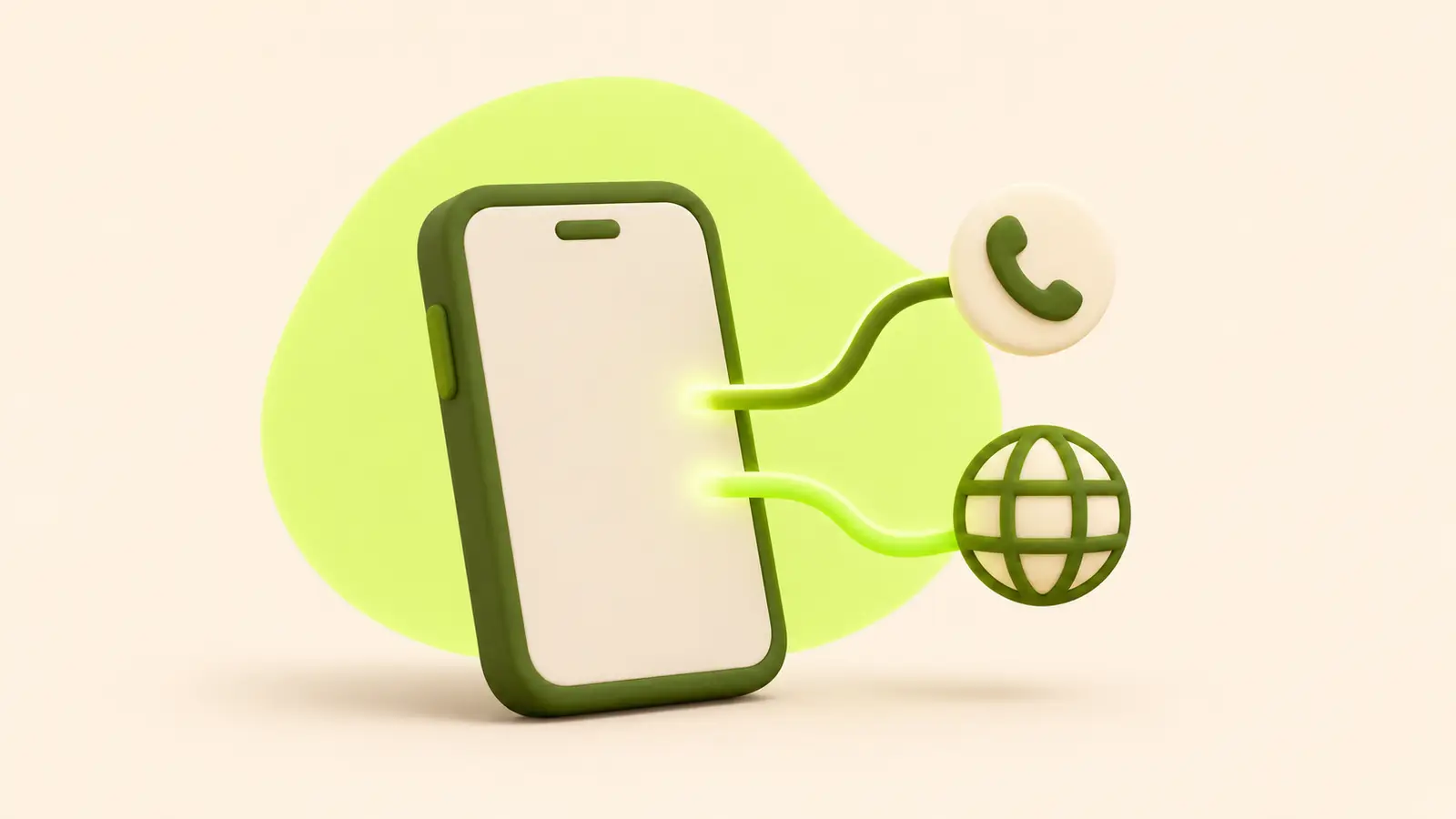
You do not have to remove your home SIM to use a travel eSIM. Your phone can keep both lines on, so your home number stays reachable while the eSIM handles your data.
How dual SIM works
Many phones that support eSIM can use two lines at the same time: your home SIM (a plastic SIM or an eSIM) and your travel eSIM. You choose which line is used for mobile data, for calls and for texts.
Butacell plans are data only. The usual setup is:
- Travel eSIM: mobile data, with data roaming on.
- Home SIM: calls and texts, with data roaming off.
Set it up on iPhone
- Open Settings > Cellular (called Mobile Data or Mobile Service in some regions and iOS versions).
- Tap your travel eSIM line and turn on Turn On This Line and Data Roaming.
- Go back and tap Cellular Data. Choose the travel eSIM.
- Tap Default Voice Line and choose your home line.
- Tap your home line and turn off Data Roaming.
Tip: label your lines, for example "Travel" and "Home", so you can tell them apart.
Set it up on Android
Menu names vary by maker.
- Open Settings > Network & internet > SIMs or Settings > Connections > SIM manager.
- Make sure both your home SIM and the travel eSIM are turned on.
- Open the travel eSIM and turn on Roaming.
- Choose the travel eSIM for Mobile data.
- Choose your home SIM for Calls and for SMS.
- Open your home SIM and turn off Roaming.
Calls and texts on your home number abroad
When your home line is on abroad, your home operator may charge you for incoming calls and texts, as well as for the calls and texts you make. Check your home operator's roaming rates before you travel.
- Keeping the home line on lets you receive texts such as bank codes, but these may be charged.
- If you do not need your home number on the trip, you can switch that line off and turn it back on later.
- On the travel eSIM, calls and texts work through apps over data.
- Butacell also offers phone numbers for calls and SMS. You can find them in your account.
If it does not work
- Check that the travel eSIM is chosen for mobile data, not your home SIM.
- Check that data roaming is on for the travel eSIM line.
- Turn airplane mode on and off, or restart the phone.
- See How to turn on data roaming and Connection help.
Frequently asked questions
Will my home SIM use data by mistake?
Not if the travel eSIM is chosen for mobile data and data roaming is off on your home line.
Can I make normal calls with the travel eSIM?
No. The plans are data only. Use calling and messaging apps over data, or keep your home line on for calls.
Need help?
If your lines still do not behave as expected, contact support.